



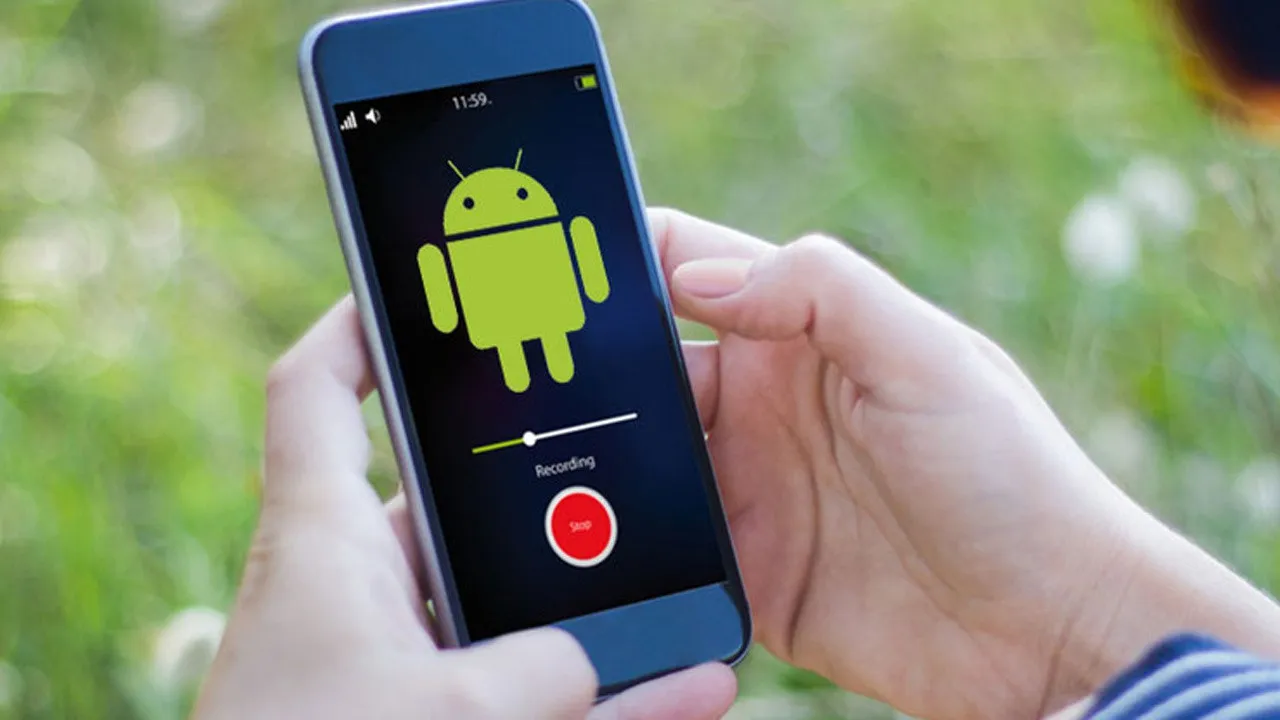
Call recording is an important feature when you need some kind of audio evidence or want to transcript something later on. Recording calls is pretty simple if you are using an Android smartphone, but which method you can use to record a call will depend on the area you live in. This is because whether Google will allow you to use inbuilt tools for recording or not depends on area and region.
Apart from Google, alternative options to record calls include some apps on Google Play Store and some external methods too. You will have to be the judge of which method suits your needs the best.
ALSO READ: How to run two WhatsApp accounts on a phone
Before you record any call, you must inform all the participants in advance about the call being recorded. Most countries have different rules regarding call recording. Like for example, in the US one needs to figure out if he/she is living in a one-party or a two-party consent state for legal reasons. In the UK you don’t need permission to record calls, but if you want to share/publish audio recordings, then you need permission.
So, to avoid any legal issues, it’s better to be thorough with the rules regarding call recording before actually exercising it. Now let us have a look at the methods to record calls.
There are three ways to do record calls on Android 12 phones:
1. Using Phone by Google App
For some users, one can record phone calls using the Phone by Google App. This is available on selective devices that have this app pre-installed according to the Google Play Store, so you might find this missing due to the brand of the smartphone you are using.
Google Phone’s recording features aren’t available in every market, so don’t get confused if you try to follow these instructions and find that the options aren’t available.

Steps to record a call while on a call in the Google Phone App-
- On the ongoing call screen, press the “Record” button with the black dot.
- When you are finished recording, press the red “Stop” button.
This is very simple but this option works only if you are already in a call and also as long as the call is not on hold, muted, or in conference mode. To listen to a recording, go to the Recent or History tab, select a call, and tap on the “Play” button.
Steps to set up automatic recording in the Google Phone App-
- In the Phone app, tap the three vertical dots in the top right, then select “Settings” followed by “Call recording”.
- Find the “Always record” option. Here one can select “Numbers not in your contacts”.
- Select “Always Record”.
- To specify contacts you want to record, follow these steps-
- In the call recording menu, find the “Always record” option and choose “Selected numbers”.
- Select “Always record selected numbers”. However, this does not do anything until you have chosen some numbers.
- Tap the “+” button. This will let you select a contact to always record calls from. After selecting someone, tap “Always record”. Repeat this step for every contact you want to add.
2. Using Google Voice App

If the Google Phone App doesn’t allow you to record your calls, then Google Voice can be used. This is because it will allow you to access your phone number across multiple devices, and thus allow you to record calls (only the ones you receive).
Steps to record calls using Google Voice App-
- Go to the “Settings” menu, then activate “Calls and incoming call options”. This lets you access extra options by pressing the keypad buttons while on a call.
- When receiving a call, press the “4” key on your keypad to enable recording. An automated voice will then inform you and the other person that the recording has begun.
- If you want to end recording before the call ends, press the “4” key again.
- The recording file will then be available in the voicemails section of the Google Voice app or will be emailed to you.
Using other recording services
There are many free and paid call recording apps available on the Google Play Store like TrueCaller.
These apps offer pay-as-you-go packages that let one pay for the just quantity of recording time you need. You can then dial a specific number when settings up a call to record it. You can then access your records, and request a transcription if needed, from your account online.
ALSO READ: What is Spotify Wrapped 2021 and How to get it?
Using External Methods
If the above-given methods sound complicated to you, then you can use external hardware methods. This could be as simple as putting your phone on a loudspeaker while on call and recording it with another device, although this won’t give good quality audio.

Telephone pick-up microphone- Olympus TP8 plugs into a 3.5mm microphone port on a computer or a Dictaphone and then sits in your ear, recording the sound while you conduct your conversation as normal. It does the job cheaply and effectively.
So, if you want good quality audio of recorded calls, then this method isn’t the one for you.













I have worked out how to use phone record apps on android 9 and above since Google has stopped it as domestic recording in the UK has no legislation so it's not subject to scrutiny. Once you have downloaded the call record app you want open your apps from the settings menu on your phone and choose the call record app you have just downloaded ,at the top right of the screen are three lines ,click them and an option will appear that says 'unrestrict access permissions" ior similar . You can then turn on the access for that call recorder app which is blocked by android . I found this out by accident but now I can use any call recording app . It works better if you keep your speaker phone whilst recording .The clarity may not be great but it should work .