Table of Content
- Liquid Glass Transparency Slider
- Consistent Window Corners, Toolbars, and Sidebars
- New Mouse Cursor Design
- “Swipe Down to Refresh” Arrives on Mac
- New and Improved Search
- Siri AI Lives Inside Spotlight
- Visual Intelligence Arrives on the Mac for the First Time
- You Can Now Create Shortcuts by Text Descriptions
- Passwords App Can Fix Your Weak Passwords by Itself
- Safari Gets AI Tab Organization and Notify Me
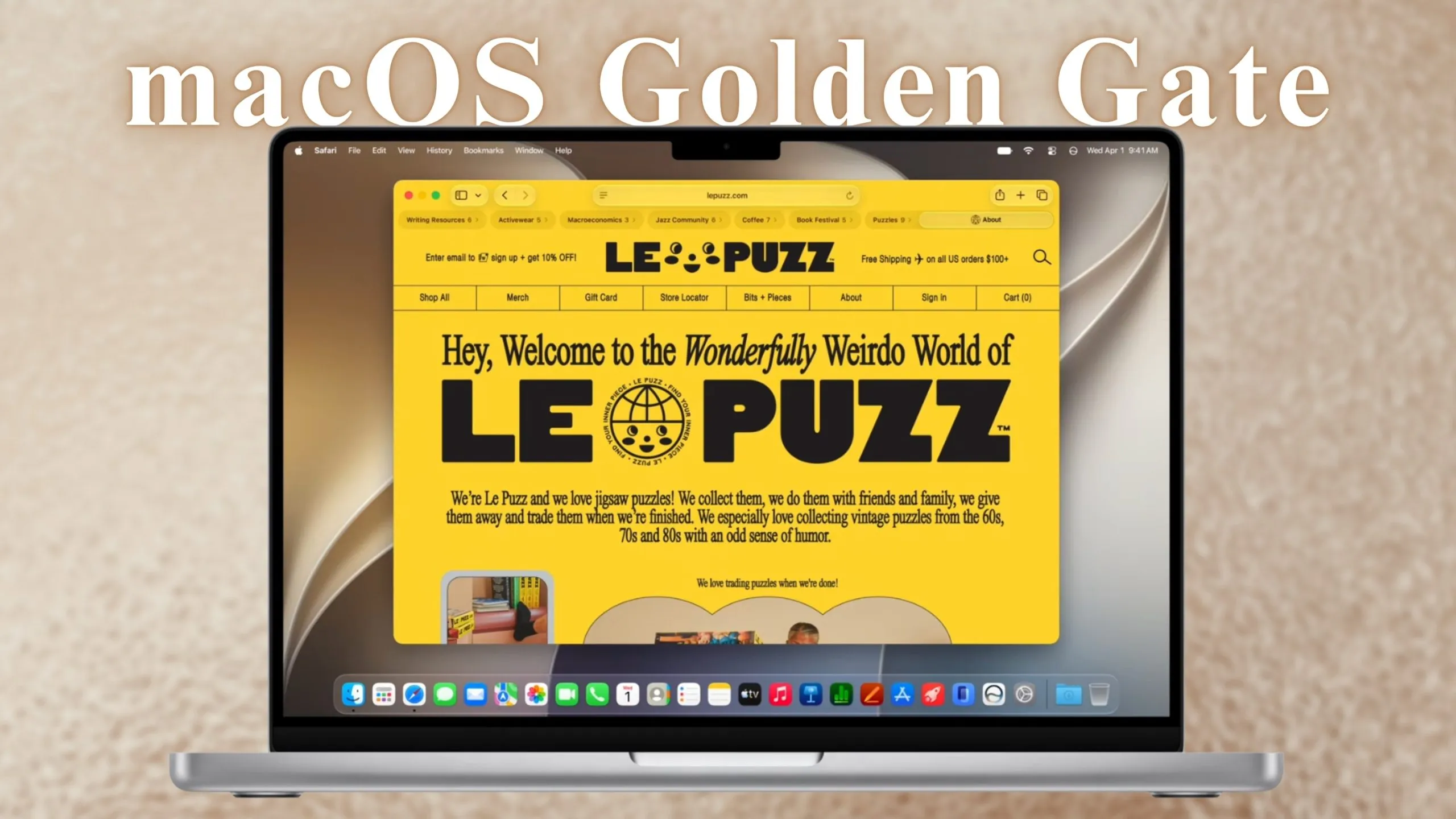
macOS Golden Gate (or macOS 27) is Apple’s most subtle yet important Mac update in years. Instead of piling on headline-grabbing features to justify the annual upgrade cycle, the company spent this upgrade cycle fixing and polishing everything that was broken, and delivering the AI capabilities it promised around two years ago.
If you own a compatible Mac with Apple Silicon (since macOS 27 drops support for Intel-based Macs entirely), this update deserves your immediate attention. Here are 10 new macOS 27 Golden Gate features that you should know about.
Also Read: macOS 27 Golden Gate is Here: Intel is Out, and A Liquid Glass Fix Is In
| Mac Model | macOS 27 Golden Gate | Apple Intelligence & Advanced AI Features |
| M1 Macs (MacBook Air, MacBook Pro, Mac mini, iMac) | Supported | Supported, but some advanced AI features may be limited |
| M2 Macs | Supported | Full Apple Intelligence support |
| M3, M4, and newer Macs | Supported | Full support, including the latest Siri AI, Visual Intelligence, and agentic features |
| Mac Studio & Mac Pro (Apple Silicon) | Supported | Full support |
| Intel Macs | Not Supported | Not Supported |
1. Liquid Glass Transparency Slider
The most polarizing addition to macOS 26 Tahoe, or rather the entire iOS 26 lineup, with all the accompanying operating systems, was the Liquid Glass design. You might have seen several social media posts about the design elements being too translucent, making the text hard to read.
Apple has addressed this directly in the recent update with a transparency slider. It’s located in the Settings app. Using the slider, you can adjust how clear or tinted the Liquid Glass effect appears across the entire user interface. If you like the design approach, you can go ultra-clear or pull it all the way to a solid tint.
Apple has also tweaked app icons with additional refractive layers for better definition and clarity.
2. Consistent Window Corners, Toolbars, And Sidebars
This one doesn’t sound as important unless you have spent substantial time with macOS Tahoe, noticing how window shapes, corner radii, and toolbar proportions were not identical in all apps. Apple’s latest macOS update fixes that.

Window border radii are now uniform, toolbars have a consistent, no-gap appearance at the top, and now extend edge to edge. Moreover, macOS 27 users will find the visual design more coherent and uniform.
Also Read: WWDC 2026: The biggest announcements, from Siri AI to iOS 27
3. New Mouse Cursor Design
This is one of the lesser-known changes about macOS 27 that most articles haven’t covered. The macOS cursor, one of the most used or viewed visual elements of the operating system, took on an unfamiliar look in macOS Tahoe, which bothered users.
Well, Apple has reverted the cursor to the pre-Tahoe glove-style look, with a more modern finish. If you switched to macOS 26 and found the new cursor uncomfortable, this tiny update should come as a relief.
4. “Swipe Down to Refresh” Arrives On Mac
Like the new cursor design, “Swipe Down to Refresh” is one of the most underreported arrivals in the entire Golden Gate release. Those who already use an iPhone or iPad know how the feature works in browsers or other supported apps, allowing you to refresh the webpage contents by swiping down the screen.
It’s quite intuitive and adds to the whole no-button, gesture-heavy user interface theme. Well, in its latest update cycle, Apple has extended the feature to Macs. Going ahead, macOS users will be able to fetch the latest content within supported apps by swiping down at the top of the page, instead of looking for keyboard shortcuts or the refresh button.
Reports suggest that the feature works in Safari, Mail, News, Podcasts, and Calendar. The feature brings macOS interactions a step closer to iOS and iPadOS, and it is also believed to be linked to the purported touchscreen MacBook Ultra.
Also Read: Siri AI Explained: What Is It And What It Can Do?
5. New And Improved Search
Searching for something on Mac has been a dreadful experience for years. Those who have tried finding files, searching via Mail, and Spotlight already know what I’m talking about. The results are often irrelevant, and finding the required file isn’t as easy and seamless as it should be, especially if you’re in a hurry.

The Golden Gate update fixes that as well. It rebuilds the search index from the ground up, loading a fresh index on update. Basically, the new process removes corrupted or outdated indexing data that slows down searches and creates a cleaner and more optimized index of the available files. The result? Faster, more stable results across the operating system, Mail, and Photos.
6. Siri AI Lives Inside Spotlight
Yes, Siri AI gets a new app on macOS 27, and yes, it has an elegant user interface, making it feel the most Apple-like app ever. However, macOS doesn’t force you to open the app every time you need the AI assistant. Instead, it embeds Siri AI directly into the Spotlight search menu.
Type a query in Spotlight, and upon recognizing it as a Siri query, macOS opens a Siri chat interface for follow-up questions and multi-step tasks (something that Google recently did with its Gemini for Mac app).

As you probably already know, the new Siri can access your Mail, Messages, and Photos to answer contextual questions, search for information on the internet, perform multi-step agentic tasks, and write, edit, and proofread written drafts.
Also Read: How to Download the iOS 27 Wallpaper for your Smartphone
7. Visual Intelligence Arrives On The Mac For The First Time
While Visual Intelligence has been available on iPhones for a while now, macOS 27 extends that ability to Macs. Using the Command + Shift + 5 shortcut now brings up the updated screenshot toolbox, wherein you can highlight a specific part of the screen and click the Siri Visual Intelligence prompt.

This opens up a contextual chat with Siri that talks about the content in the picture and answers your queries about it. You can use the feature to ask questions about images, text, documents, or screenshots. Control-clicking any image or file also surfaces Siri as a context menu option.
For Indian students and professionals who regularly work across multiple documents, browser tabs, and reference material, this comes as a useful addition.
8. You Can Now Create Shortcuts By Text Descriptions
I personally know at least 10 different iOS and macOS users who refrain from creating shortcuts on their iOS, iPadOS, or macOS devices, simply because the process is a bit more tedious than what a regular user would expect, especially since we are in the era of vibe-coding, wherein text-based prompts are enough to create websites and apps.

With macOS 27, you no longer need to know how to create Shortcuts. You can simply describe the Shortcut you need in plain text, and Apple Intelligence does the rest for you. Apple showcased this with an example at WWDC 2026: creating a shortcut that sends the departure time (based on location), along with the ETA, to someone’s spouse.
Also Read: iOS 27 Supported Devices: Apple Confirms iPhone 11 and Newer Will Get the Update
This is the kind of update that makes automation accessible to a wider audience without having to teach them about it.
9. Passwords App Can Fix Your Weak Passwords By Itself
The Passwords app in Golden Gate gets agentic AI. It can now flag your weak or compromised passwords, and for supported websites, it can even log into your account, generate a strong password, update it on the site for you, and save it back to the Passwords app for easy login.

For Indian users who have dozens of accounts with reused or outdated passwords (with me being one of them), it removes the procrastination.
10. Safari Gets AI Tab Organization
Two Safari features are worth using immediately on Golden Gate: topic-based tab organization and Notify Me. The first organizes all your active tabs by subject, which is a relief for users like me who keep 25 open tabs at any given point, all about different topics.

Notify Me lets Safari keep an eye on a specific webpage and alert you when something changes, like product availability, price, etc. How well it will work with Indian e-commerce websites like Flipkart, Myntra, and Amazon is something that we are yet to see, but it sounds genuinely useful.

You can follow Smartprix on Twitter, Facebook, Instagram, and Google News. Visit smartprix.com for the latest tech and auto news, reviews, and guides.