


If your Windows laptop or PC doesn’t have a webcam or has a poor-quality one, then you are in the right place. Using your phone as a webcam also means that you have the flexibility to show what’s in front of you, not just you, and what’s behind you.
Earlier, you would have to use third-party apps to be able to use your phone as a webcam, but with the latest update to Link to Windows, you can do it natively. The Link to Windows app comes pre-installed (it can also be installed manually), so you’re pretty much ready to go. So, without any further ado, let’s see how you can use your phone as a webcam.
Step 1: Setup Link to Windows (Optional)
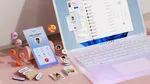
The first thing to do is set up Link to Windows on your phone and PC. This will help establish a connection between your PC and your phone. Not only can you use your phone as a webcam, but you can also make and receive calls, use your smartphone apps, receive notifications, copy and paste files and text, and do a lot more.
This can be helpful for video conferencing, streaming, and online classes, especially if your laptop’s built-in webcam isn’t up to the mark. Here’s how to set it up:
1. If you don’t already have the app, open the Google Play Store on your phone.
2. Search for “Link to Windows” and install the app.
3. Now, open the Phone Link app on your Windows PC and start the setup process.
4. You will be asked to scan a QR code to log in. Simply follow the on-screen instructions.
ALSO SEE: 6.6 inch Mobile Phones Price List in India 2024
Step 2: Connect Your Phone to Your PC
1. Once the Phone Link setup is complete, open the Settings app on your Windows PC. You can do so by pressing the Windows key + I on your keyboard.
2. Once in the Settings app, go to the Bluetooth & devices section.
3. Then, click on Mobile devices.

4. Here, click on Manage devices.

5. Your Android phone should show up here if you followed Step 1. If your Android phone doesn’t already show up, simply click on Add device.

6. Scan the QR code that appears on your screen. You will be asked to enter the code that you see on your PC screen.

7. Once the pairing is done, click Continue on your PC screen.

8. Turn on the toggle next to your phone’s name and then the one next to Use as a connected camera.

ALSO SEE: Intel Core i7 Laptops Under 50000
Step 3: Use Your Phone as a Webcam
1. Open the Camera app or the video conferencing app where you want to use the webcam.
2. In the app’s settings, choose your phone as the webcam source.
3. If you are using the default camera app, simply click on the Change camera icon on the top right.

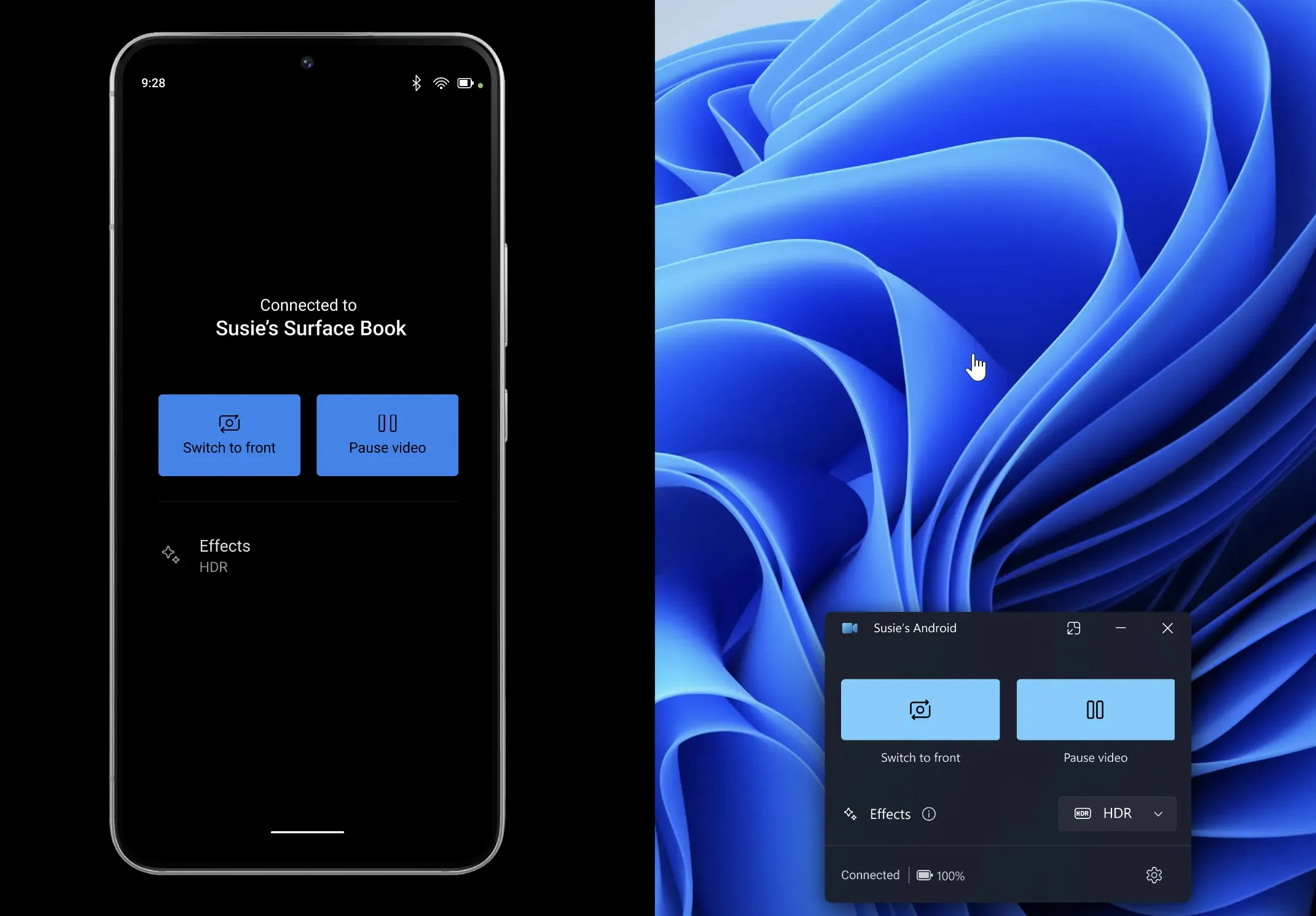
4. On your phone, you can pause the video and switch to the front or rear cameras.


This is how the output looks:


That’s it for this guide. We hope that this has helped you use your phone as a webcam. Now, you’re ready to use your phone as a webcam for video calls, streaming, online classes, or any other purpose where a good-quality camera is needed. If you have any further questions, let us know in the comments section below.
ALSO SEE: Automatic Cars Under ₹15 Lakh
You can follow Smartprix on Twitter, Facebook, Instagram, and Google News. Visit smartprix.com for the latest tech and auto news, reviews, and guides.