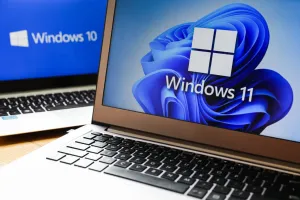
If your Windows 11 PC is acting up or running slowly, a reset can often fix the problem. Windows 11 gives you multiple ways to reset your PC—if you want to keep your files or wipe everything clean, there’s a method for you. Here’s a guide to all the methods you can use to reset your PC.
Prerequisites
Before we get started, make sure you have the following ready:
- Make sure your PC/laptop is connected to the power.
- If you’re using cloud reinstall, make sure you are connected to the internet.
- Take a backup of all your data to the cloud or locally. All your data will be wiped once the reset is initiated.
Method 1: Reset Through Settings
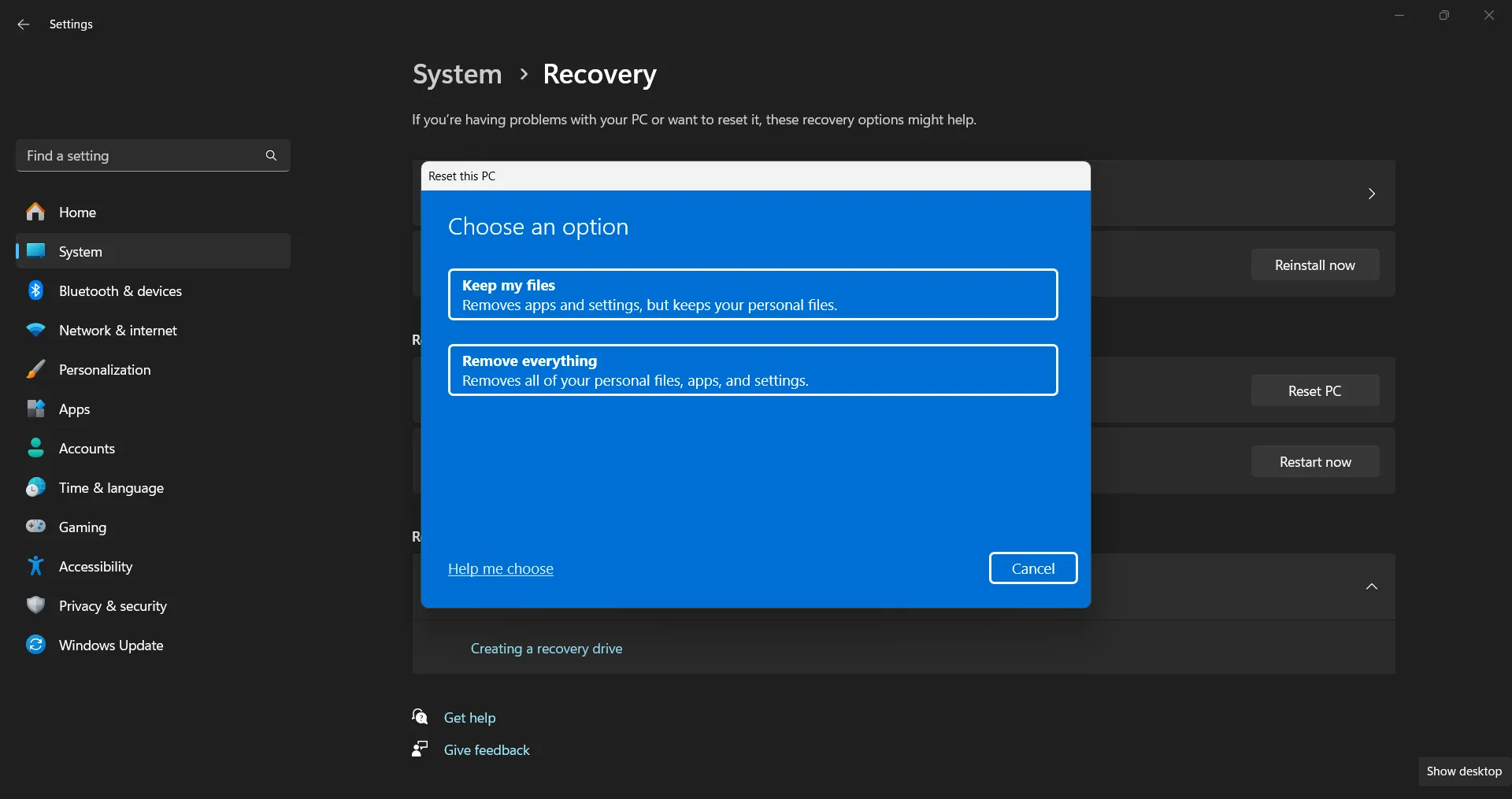
The easiest way to reset your Windows 11 PC is through the Settings app. You can choose to either keep your personal files or remove everything.
1. Open the Start Menu and click on Settings.

2. In the left panel, click on System, then scroll down and select Recovery.

3. Under Recovery options, click on Reset PC next to the Reset this PC option.

4. Choose whether to Keep my files or Remove everything. I would suggest proceeding with the latter option.

5. Select Cloud download (downloads a fresh copy of Windows) or Local reinstall (uses the files on your PC).

6. Click Next and follow the instructions to complete the reset.
ALSO SEE: Mediatek Dimensity 7300 Mobile Phones Price List 2024
Method 2: Reset Using Advanced Startup
If you can’t access your desktop or the Settings app and if your PC simply can’t boot into Windows, you can use Advanced Startup to reset your PC.
- Turn off your PC.
- Turn it back on while holding down the Shift key. You may try the F8, F9, F12, or the F2 key if Shift doesn’t work.
- This should bring you to the Advanced Startup menu. Click on Troubleshoot.
- Choose Reset this PC.
- Select Keep my files or Remove everything.
- Confirm and let the reset process finish.
ALSO SEE: Hero Bikes Price List in India
Method 3: Factory Reset via Recovery Partition
Many PCs come with a built-in recovery partition that allows you to restore your computer to factory settings.
- Restart your PC and press the required key (usually F11, F9, or Esc) to enter the recovery environment.
- In the recovery options, choose Troubleshoot.
- Select Reset this PC, then choose Remove everything.
- Follow the on-screen instructions to restore your PC to factory settings.
Method 4: Reset Using Command Prompt in Safe Mode
If the other methods don’t work, you can reset your Windows 11 PC using Command Prompt in Advanced Startup.
- Start your PC in Advanced Startup by pressing Shift and selecting Restart from the Start menu. Or, simply restart your PC and press and hold the Shift key while it’s restarting.
- In the Advanced Options, click on Troubleshoot, then go to Advanced options > Command Prompt.
- Type systemreset and press Enter.
- Choose whether to keep your files or remove everything.
ALSO SEE: Intel Core Ultra 9 CPU Laptops
You can follow Smartprix on Twitter, Facebook, Instagram, and Google News. Visit smartprix.com for the latest tech and auto news, reviews, and guides.