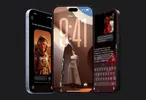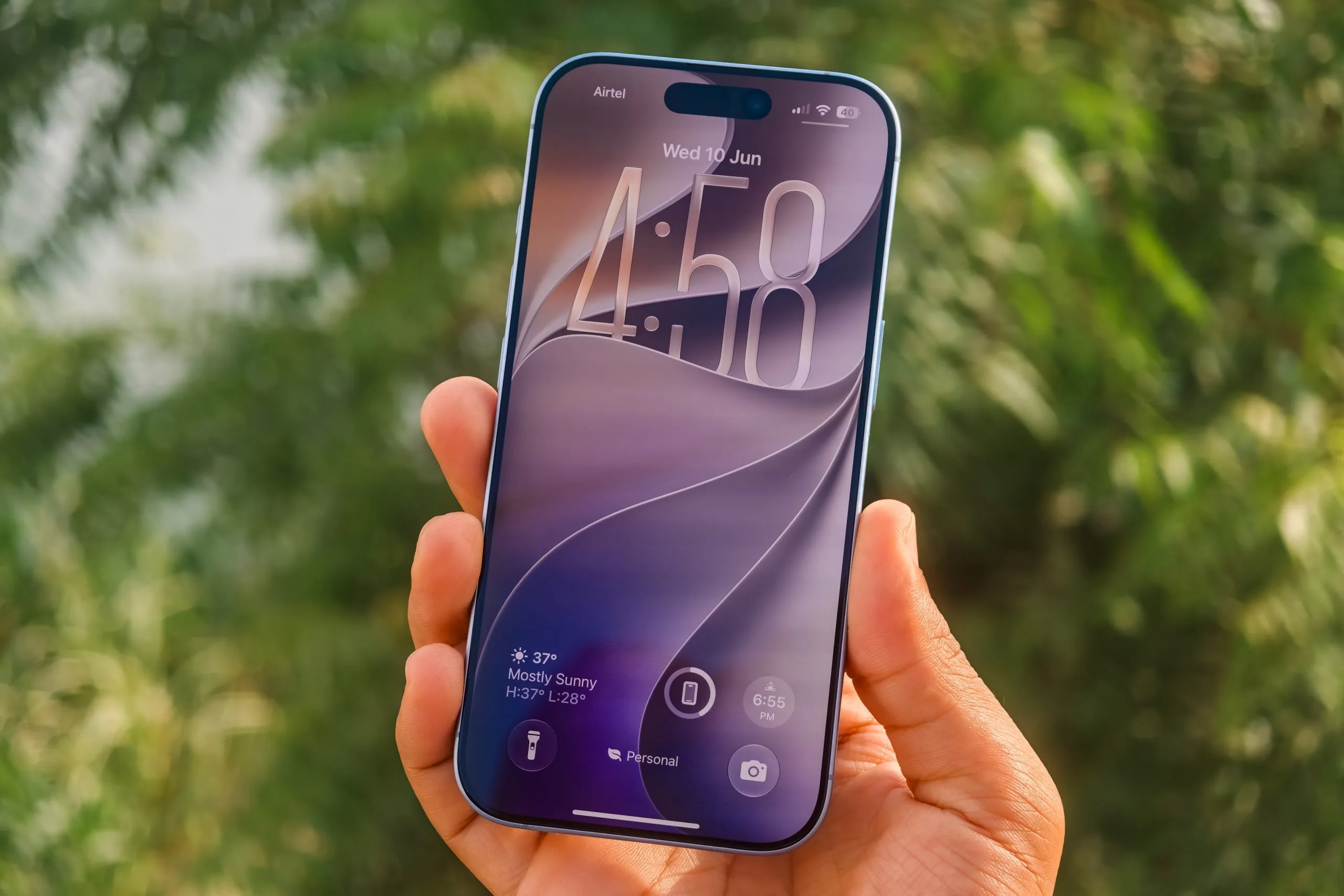
I’ve been using iOS 26 since the very first day on my iPhone 17. I went through every update, eventually landing on iOS 26.5.1, which was supposed to be the polished stable release. Then WWDC 2026 happened, Apple released the first iOS 27 developer beta, and I installed it almost immediately.
The funny thing is that after spending around 36 hours with iOS 27, the first developer beta actually feels smoother than iOS 26.5.1 ever did. That’s probably the biggest compliment I can give Apple right now.
iOS 27 is not one of those updates where you discover some crazy new feature every five minutes. This isn’t an iOS 7-style redesign or an iOS 14-style widget update. Apple spent most of its effort fixing, refining, optimizing, and improving the things that already existed.
After using it for over 36 hours, it feels like iOS 26 was the beta and iOS 27 is the version Apple originally wanted to ship. Let’s dive in.
The First Thing You Notice Is The Speed
Apple claims app launches are up to 30% faster, Photo library loading is up to 70% faster, AirDrop transfers are up to 80% faster, and file transfers through Files are significantly faster.


Usually I ignore most marketing numbers because they’re measured under ideal conditions, but this time I can actually tell the difference.
Apps launch quicker. The keyboard appears instantly. Switching between apps feels more responsive. Photos loads content faster. Spotlight searches appear quicker. Animations rarely stutter. Even simple things like opening Settings or jumping between menus feel more immediate.
What’s interesting is that this isn’t limited to newer phones. I’ve seen reports from iPhone 11, iPhone 12 mini, and iPhone 13 users who are saying the same thing. Many of those devices had a rough time on iOS 26 with random bugs, heating issues, animation glitches, and inconsistent performance. Early impressions from those users suggest iOS 27 is actually running better despite being a developer beta.

Apple says it reworked CPU scheduling, memory management, and background task handling. Whatever they changed seems to be working because the entire operating system feels lighter.
Liquid Glass Finally Gets Fixed
One of the biggest complaints about iOS 26 was Liquid Glass. Some people loved it. Some hated it. Most people just wanted more control over it. Apple finally added that control in iOS 27.
Inside Settings, you now get a proper Liquid Glass slider that lets you adjust the intensity of the Liquid Glass across the system. The first thing I did after installing iOS 27 was move the slider toward the clearer side.

Apple also expanded Liquid Glass effects throughout the system. Widgets now get the same refraction effects that were previously missing. The entire interface feels more consistent.

There is one thing I don’t like though. Apple replaced many of the bright highlights from iOS 26 with dark borders around Liquid Glass elements. In Control Center this looks great. In some menus it also works well. On app icons, especially Clear Icons mode, it looks bad.
The black outline is much more noticeable than the old highlight effect and makes the new icons look oversharpened and honestly ugly. Hopefully Apple tones this down before the final release.
Control Center and Menus Are More Polished
There are dozens of tiny UI changes throughout the system. The Power button and Add button in Control Center are now placed inside proper circular buttons, making them much easier to identify.

When you enter editing mode, the old “Edit” and “Done” text buttons are gone. Apple replaced them with icons, which looks much cleaner.

Another thing I noticed immediately is that Apple is now forcing parts of the Liquid Glass experience onto third-party apps. For example, apps that haven’t updated for iOS 27 yet still get the new Liquid Glass keyboard automatically. Context menus also adopt the new style.

Navigation bars still need developers to update their apps manually, so you’ll occasionally see a mix of old and new UI elements depending on the app.
The New Extra-Large Widgets Are Massive

Apple quietly added a new widget size and it’s huge. The new extra-large widget uses a 6 x 4 layout and takes up almost the entire Home Screen. Depending on the widget, you can see a huge amount of information without opening the app.
The Camera App Is Actually Easier To Use Now
Apple didn’t redesign the Camera app from scratch, but they made a lot of small changes that improve usability. The first thing I noticed is that the camera modes are easier to understand.

Earlier, Apple would only show two modes prominently. Now Portrait mode is more visible and the interface does a better job indicating that additional modes exist.
Controls such as flash, Live Photo, exposure adjustment, depth controls, and resolution settings are also easier to access at the top. Apple reorganized several menus and reduced the number of hidden gestures required to access common settings.
Siri Is Finally Becoming What Apple Promised Two Years Ago

I haven’t received access to the new Siri experience yet because Apple is still rolling it out, but we now know a lot more about how it works.
Siri is no longer just a voice assistant that answers one question at a time. It understands context across conversations. It can see what’s on your screen. It can access your Photos, Messages, Calendar, Files, Notes, and Reminders after receiving permission. It can also perform multiple actions without requiring additional prompts.

For example, you can ask Siri to summarize selected files, create reminders from information inside messages, edit photos, build shortcuts, schedule events, and perform actions across multiple apps.

The assistant also gets its own standalone app with conversation history, a new interface integrated with Dynamic Island, and much more natural voice responses.

Apple is combining its own Foundation Models with Google Gemini through Private Cloud Compute for more advanced requests.
Apple Intelligence Is Everywhere Now
Apple Intelligence feels much more integrated in iOS 27 than it did previously.
The Photos app receives three major upgrades. The first is an improved Clean Up tool, which removes unwanted objects more accurately. The second is Extend, which expands image backgrounds using AI.

The third is Spatial Reframe, which is probably the most interesting addition. Spatial Reframe lets you reposition subjects inside a photo after it’s already been taken. The AI reconstructs parts of the image and generates new content to create an entirely different composition.
Photos also gets improved Memory Movies that automatically build themed video compilations from your library.
Meanwhile Safari can organize tabs automatically, Calendar can create events from natural language descriptions, Messages can suggest photos people ask for, and Shortcuts can now be created simply by describing what you want in plain English.
There Are Tons Of Small Features Apple Barely Mentioned
This update is packed with little quality-of-life improvements too.
The keyboard now shows a dedicated paste suggestion whenever you copy text or images. Instead of long-pressing and selecting Paste, you can simply tap the suggestion directly above the keyboard.

Apple finally added separate volume controls for alarms, ringtones, and media playback.

The Photos app now has a dedicated Camera Roll section showing only content captured directly from the camera. I still cannot believe it took Apple this long to bring back something so basic.

You can now save individual video frames as photos directly inside Photos.

The Focus button can be collapsed into a small circular control instead of taking up extra space in the Control Center.

Messages lets you decide whether the text field should show audio recording, dictation, or nothing.

Alarms can recognize holidays and ask whether you still want them active.

Health and Fitness now support landscape orientation.

Weather gets redesigned weather condition views for precipitation and wind.


Apple slightly redesigned App Store purchase confirmation screens.

There’s a new Drawing app inside iMessage that lets users sketch and send drawings.


Lock Screen customization now supports placing the time and date in an extremely compact single-line format.

Even the battery icon has changed. Personally, I don’t like the new design because Apple removed some of the visual separation that made it easier to read at a glance.

Battery Life And Bugs
Battery life is difficult to judge right now. The phone is still indexing content in the background after the update, which always affects battery performance during the first few days.
At the moment, battery life appears roughly similar to what I was getting on iOS 26.5.1. As for bugs, they’re definitely present, but surprisingly limited.
I’ve seen a few graphical glitches. And a bug where cropping a screenshot after taking it doesn’t save it. Some Liquid Glass elements still look unfinished. A handful of animations occasionally behave strangely.
Overall though, this is one of the most stable first developer betas I’ve used from Apple in years.
My Verdict After 36 Hours

After spending 36 hours with iOS 27, I don’t think this is the most exciting iOS update Apple has ever released. I do think it might be one of the most important.
Apple focused on fixing performance, improving consistency, cleaning up the interface, expanding Apple Intelligence, and making the operating system smoother across every supported device.
If you’re looking for dozens of flashy new features, you probably won’t find them here. If you’re looking for an iPhone that feels faster, smoother, more polished, and more reliable than it did on iOS 26, iOS 27 delivers exactly that.
Right now, my recommendation is still to wait for the public beta. But based on the first 36 hours, Apple has done a much better job with iOS 27 than it did with iOS 26, and this already feels closer to a finished release than many previous developer betas.

You can follow Smartprix on Twitter, Facebook, Instagram, and Google News. Visit smartprix.com for the latest tech and auto news, reviews, and guides.