


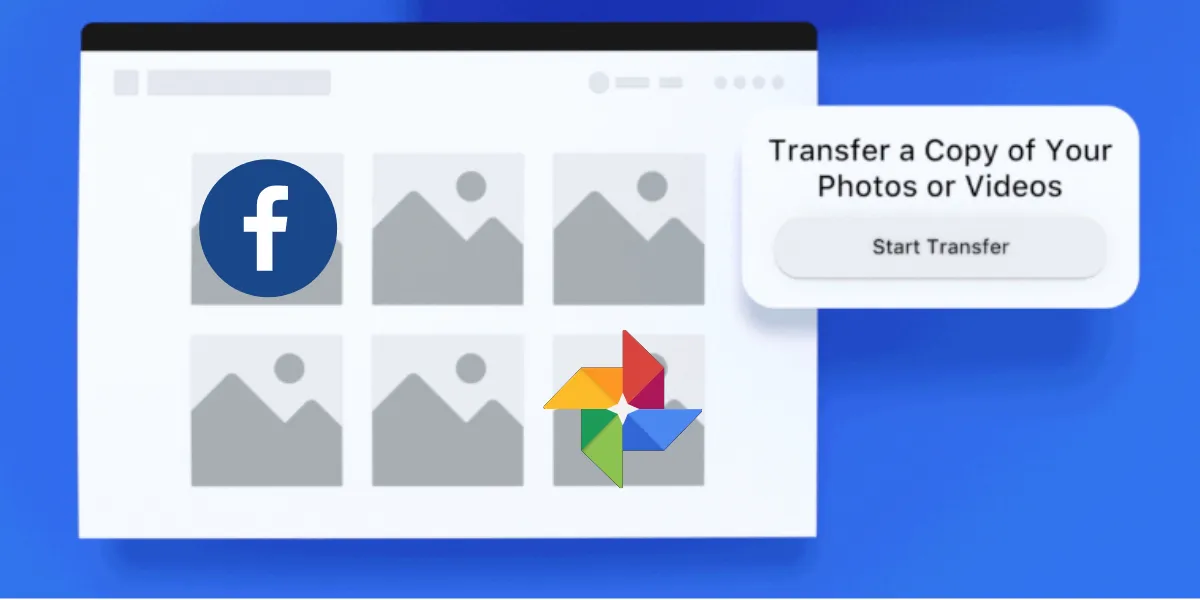
Ever wondered about a way to transfer your Facebook photos and videos to other platforms? If yes, Facebook has a native tool that does just that. For now, it works with Google Photos. And the migration is as seamless as it could get.
Before we jump to using the tool, let’s have a briefing about what’s it, why Facebook amongst all other companies have introduced such a solution, and why Google Photos in particular?
Data Transfer Project: What is it?
This tool we are discussing here comes under the Data Transfer Project.
Data Transfer is a collaborative effort by tech giants like Google and Facebook to create “an open-source platform promoting universal data portability”. The intent is to grant the user the ultimate choice with the movement of their personal data.
Now, the brands are looking forward to a long string of use cases. Transfer of photos between Facebook and Google is just one amongst them.
But, but, but…
Why Google Photos?

Google Photos is arguably one of the best apps Google has come up with. It is much more than your run of the mill Gallery app or backup bank.
Here are the reasons you may consider Google Photos for storage and backup of your photos and videos if you aren’t already:
- Your photos are smartly organized
- Speaking of smart, Google Brain or the intuitive AI automatically enhances your photos, creates albums, movies, collages, animations, panoramas, photo books, etc.
- A powerful built-in editor which lets you manually tweak your photos.
- A snappy yet robust search feature
- Scan, translate, search and identify things using Google Lens
- Share and collaborate with trusted others
- And top of all that, you get Unlimited backup, which might be the major puller for many.
Thanks to Data Transfer Project, now you can move and safely save your sweet old memories and moments from Facebook you made over the years.
Oh yeah, don’t fuzz about Privacy and Security of your media on Google Platform.
So, if all of these interests you, come on, let’s transfer some photos/videos.
ALSO READ: How to fact check YouTube videos
How to transfer media from Facebook to Google Photos

1. Access the tool here. You’ll have to log in to your Facebook account on the next screen.

2. On the next screen, you have to choose the destination, where you want to transfer your photos. At the moment, Google Photos is the only available option. Select it.

3. Now, you have to choose between photos or videos, whichever you want to transfer first. For the sake of this tutorial, I am picking photos.
4. Press Next.

5. Next up, you have to authenticate your Google account by signing into your personal email ID. In the following screen, Press Allow. You’ll be redirected back to Facebook.

6. Press on Confirm Transfer.

7. The transfer begins and should be complete in a while. Keep the tab open until then.

8. Once it’s done, you’ll see completed with a green dot symbol.
9. That’s all. Now, if you wish, you can repeat the process but pick Video/Photo which you want to migrate next.
Nifty, right?
On Mobile, the process is quite similar. You just have to go to Facebook Settings and scroll down to the ‘Your Facebook Information’ section. Click on ‘Transfer a Copy of Your Photos of Videos’ and the rest of the steps are the same as above.
ALSO READ: How to use JioMeet for video conferencing
Once it’s all done, if you want to revoke Facebook’s access to Google, go to Google Account settings, and remove Facebook’s access.
Tell us about your experience down in the comments.