


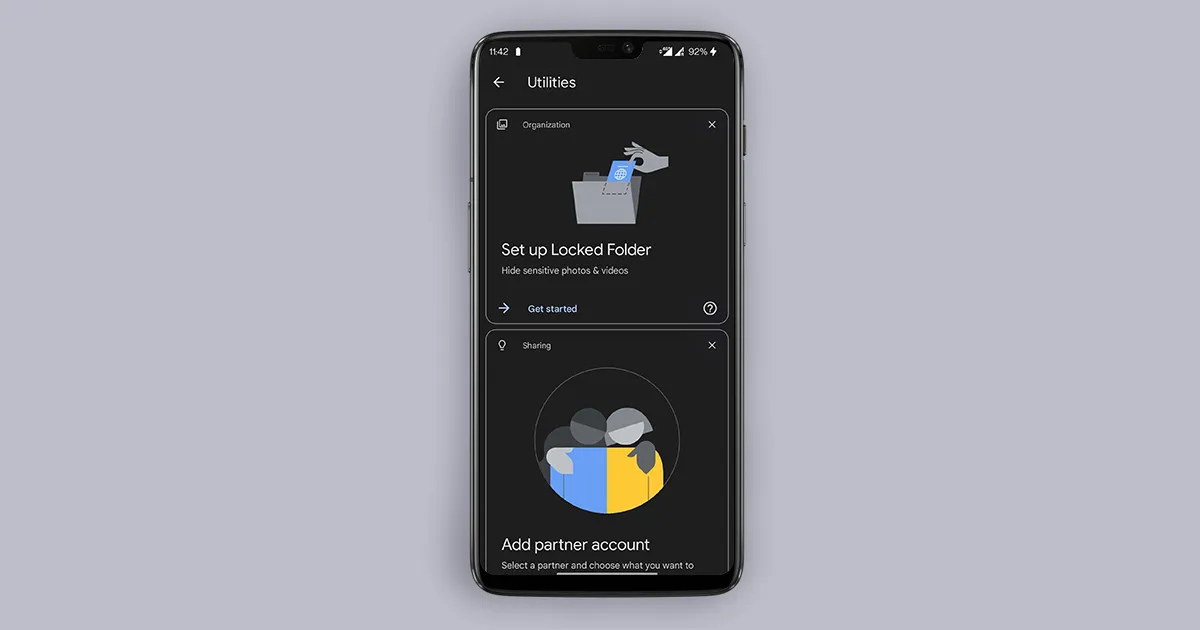
Google has started rolling out a new ‘Locked Folder’ feature of its popular Photos pack-up application globally. Earlier, the Galaxy Photo feature was limited to only Google Pixel users, but now it has been rolled out to other Android devices as well.
What is the Locked Folder feature in Google Photos?
The Google Photos Locked Folder feature allows users to keep their sensitive photos and videos in a password-protected folder. This locked folder will be not be shown in the primary photo section, memories, search, or albums; and even other apps with permission to access Google Photos can’t reach the folder. The feature basically stores the images locally on the Android device and prevents them to be uploaded on Google cloud. The locked folder feature is said to be available on Google Photos for iPhone sometime in 2022.

Points to remember before activating Locked Folder
- It is available on Android 6 and later.
- Persons with access to your device screen lock can also access Locked Folder.
- Photos and videos saved in Locked Folder can not be moved to other devices with USB transfer. They can neither be uploaded on cloud storage.
- Uninstalling the Google Photos app or deleting its app data will permanently clear all files saved in Locked Folder. Though, you can save those images and videos by removing them from the Locked Folder before making such changes.
ALSO READ: Money Heist Season 5 Volume 2 India Release Date, Plot, and more Details
How to set up Locked Folder in Google Photos
- Update your Google photos app from Play Store to find if it is available to your device.
- Open the Photos app.
- Click on ‘Library‘ on right below the corner.
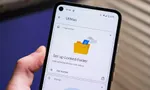
- Go to the ‘Utilities’ option shown in the new window.

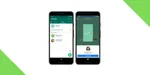
5. If the feature is available to your Android device, a splash screen displaying the Set up Locked Folder will appear. It can also be found when scrolled down to the ‘Organize your library’ section.
6. Click on Get Started option.

7. Enter the current screen lock to your device.
8. ‘Locked folder’ will appear. Click on the ‘Move Items’ option to add images and videos.

9. Select the items from the main photo roll.
10. Once selected, click on the ‘Move’ button in the right upper corner.

11. A pop-up window will appear asking you for permission to move the selected item. Tap on it.

12. That’s all. Once the transfer is done, you can now see your sensitive photos and videos in the Locked Folder.

ALSO READ: Cricket 22 announced; Here’s how to download the game on PC, PlayStations, and Xbox
With the feature, items moved to the locked folder will not even appear in other galleries or file manager app too. Those media will only be accessed from Google Photos by following the steps mentioned below.
How to access media in Locked Folder of Google Photos
- Open Google Photos and go to Library.
- Tap on Utilities option.
- Scroll down and click on Locked Folder option.
- Enter device lock screen pattern or password.