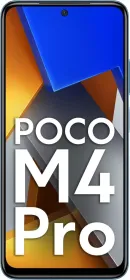
Poco M4 Pro arrived earlier this year with a 6.43” AMOLED 90Hz panel and an Helio G96 SoC under the hood. The device sports a triple rear camera at the back. It uses a 64MP OmniVision OV64b40 primary, 8MP Sony IMX355, and a 2MP macro shooter whereas the front uses a Sony IMX471 16MP shooter. There’s 33W fast charging tech onboard with a 5,000mAh battery under the hood.
It goes without saying, the built-in (or pre-installed) camera app does capture average shots which is something Xiaomi or POCO can improve, however, they don’t. In fact, the smartphone maker pushes slightly incremental updates on the camera app giving a slight improvement, however, it pretty much isn’t anything you can flaunt.

But hey, Google Camera (better known as GCam on non-Pixel devices) offers exceptional photography performance on any smartphone assuming that it supports it. GCam is simply packed with features from HDR+ to HDR+ Enhanced and more allowing users to capture high-quality images. In fact, you wouldn’t believe that the shots are from your phone’s camera if you capture the shots between GCam and the pre-installed camera app.
There are other features as well including but not limited to Lens Blue, Motion Photos, Night Sight, Astrophotography Mode, and a lot that you can leverage simply by uploading configuration files available additionally.
How can you get GCam on Poco M4 Pro?
The crux of this how-to guide is to explain how you can actually get your hands on GCam on your Poco M4 Pro. So let’s see how it is done.
Do note that you can get your hands on GCam using mods such as BSG, an LMC, or Arnova8G2 available for Poco M4 Pro. Of course, you can download any mod and load the required configuration files and you are good to go.

Step #1: First up, check out the ‘Downloads’ section below and download either of the APK files on your phone.
Step #2: Next, search for the downloaded file and tap on it, and ‘Install’.
Step #3: if your phone doesn’t allow installation from unknown sources, you will have to enable it via Settings >> Security or Privacy >> Enable Installation from Unknown Sources. You should be able to install the unknown APK file right there.
Step #4: Finally, launch the Google Cam (GCam) and there you have it.
How To Load Config Files on GCam?
Using config files on GCam does extend its functionalities manifold. Here’s how you can actually load these files on GCam that you just installed.
Step #1: First up, download the config file on your phone.
Step #2: Launch the GCam (Google Camera) and go to Settings.
Step #3: Tap on ‘Load’ and you will be redirected to the file manager.
Step #4: Tap on the file you want to load and let it load, and performs the actions mentioned on-screen.
Step #5: Once the file is loaded, you can leverage particular feature on GCam and that concludes the procedure.