iOS 16 Lock Screen: How to quickly change the Clock Style on iPhone Lock Screen

Main Image
  • Like
  • Comment
  • Share

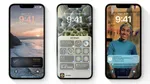
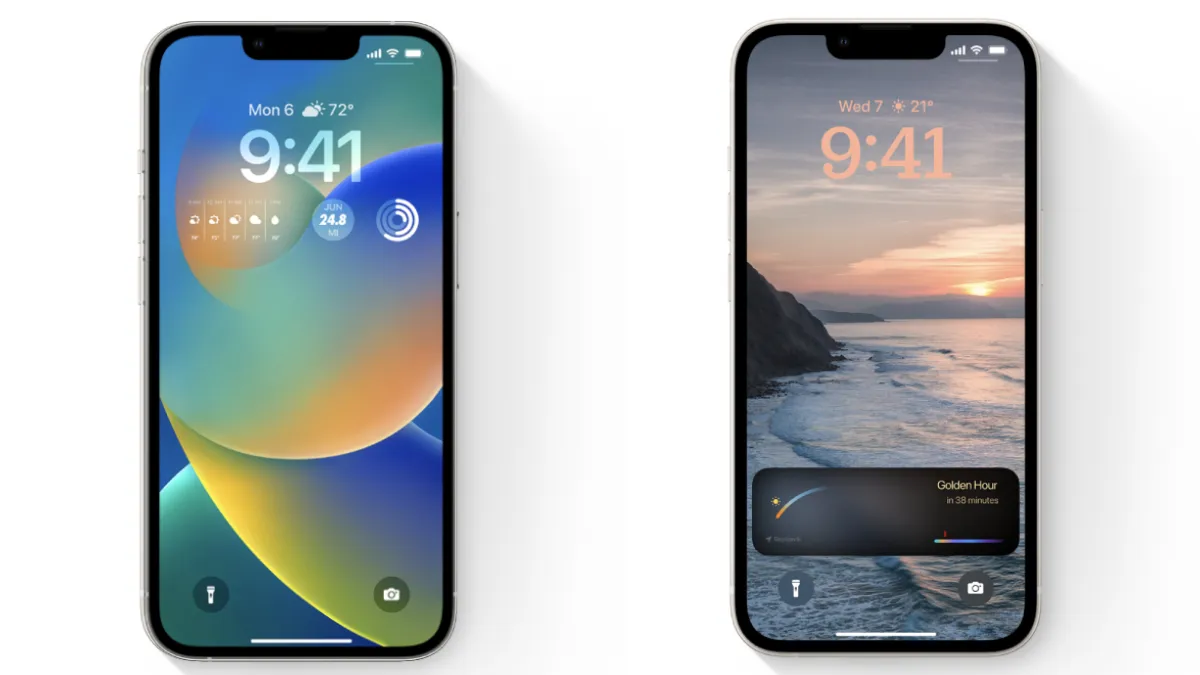
Apple with its newest iOS 16 has brought a host of new customization options on the Lock Screen of iPhone models. From choosing your own wallpaper from the gallery to opting for different widgets, an iPhone user can handle it all. Not limited, iOS 16 is also allowing users to select the clock font style and colour of their own choice.

In short, it can be inferred that Apple‘s new personalization options are something iPhone users can really be proud of. The new features let users have more control over the lock screen and users can now edit the appearance of the digital clock. 

ALSO READ: Apple iOS 16 rolls out to all iPhones; Check the new features and eligibility iPhones lists

Here’s how to change the font and colour of the clock on your iPhone’s Lock Screen.

  1. Unlock your ‌‌‌iPhone‌‌, then press and hold the Lock Screen.
  2. If you have different Lock Screen options, swipe the one you want to edit and then tap Customize option.
  3. Click on the digital clock region to open the edit menu.
  4. Select the font style from the available options in the menu.
  5. Swipe among the different colour options. Also, adjust the hue of the chosen colour to best suit your liking.
  6. Hit the ‘Done’ option on the right-upper corner of the screen to save the changes.
  7. Now, select the new Lock Screen in the wallpaper gallery to activate it on your iPhone.

With the same method, you can customize different digital clock styles for different Lock Screens and invoke them on your wish. All you have to do is to go to Settings > Wallpapers to choose the desired Lock Screen. 

Sachin Deo VermaSachin Deo Verma
Sachin covers technology news at Smartprix and he also has a keen interest in automobile and electric vehicles. He keenly gains knowledge from various sources to be updated with the latest tech trends. He is also a passionate Potterhead who dabbles in literature, and poetry, and loves to travel.

Related Articles

ImageMG Windsor, Tata Nexon, Kia Syros EV: These Are The Best EVs You Can Buy Under ₹15 Lakh

The Indian EV market is growing, but are the options for buyers also growing with it? We find out in this article. You see, a couple of years back getting a decent EV meant shelling out at least ₹20 lakh for it. Not anymore. Now, we have plenty of decent options, even under a ₹10 …

ImageiOS 16 Lock Screen: How to create a new lock screen for your iPhone?

Apple recently rolled out iOS 16 which is the latest version of the operating system by the company. The latest iOS allows you to change the colour and font, apply filters and also use multiple information-rich widgets on the wall too. With the latest features, you’ll be able to shortlist lock screen wallpapers from a …

ImageBest iOS 16 Lock Screen Widget apps for your iPhone: Lock Screen Widgets for iPhone 14, iPhone 13 and more

iPhone users have been complaining about the unavailability of lock screen customization options but with the new iOS 16 update, Apple granted the wish. Now, iPhone users can personalize their Lock Screen with the five built-in widgets including Clock, Calendar, Weather, Reminders, and Fitness. Also, Apple is allowing third-party app developers to create their respective …

ImageApple Unveils iPhone Duo: Its First Foldable iPhone Brings a 7.6-Inch Screen, A20 Pro Chip, and eSIM-Only Design

Apple is now in the foldable phone game. The iPhone Duo is a book-style device, and Apple says it’s the biggest design change since the first iPhone. The company announced it at its Cupertino event on September 9. Samsung launched the first Galaxy Fold over seven years ago. Design and Displays When closed, the iPhone …

ImageGoogle Quick Share SDK Coming to Android and iOS Apps in 2027

Google announced the Quick Share SDK at the Android Dev Summit 2026. The new SDK will let developers integrate the company’s peer-to-peer sharing system directly into their apps, allowing users to send files without leaving the app to open the system share sheet or the full-screen Quick Share interface. Google is also bringing the SDK …

Discuss

5 Comments
User
Alan
Anonymous
4 years ago

Rubbish, It doesn’t work, well certainly not on my new iPhone 14 pro

Reply
User
Deepak Rajawat
Anonymous
4 years ago

Check for a system update.

Show Replies (1)
User
Gwen F
Anonymous
4 years ago

This doesn’t work. It only gives the option to add new wallpaper not edit clock.

Reply
User
Matt
Anonymous
4 years ago

Not liking this at all. I don’t want a massive clock on my screen. How do I change the size of the clock, WITHOUT having a customised wallpaper added.

Reply
User
Barry Winters
Anonymous
4 years ago

Doesn’t tell you how to reduce the size though – no font sizes are available this way, only 12

Reply
User
Camilla
Anonymous
4 years ago

This did not work to change my clock. It only changes the wallpaper.

Reply